
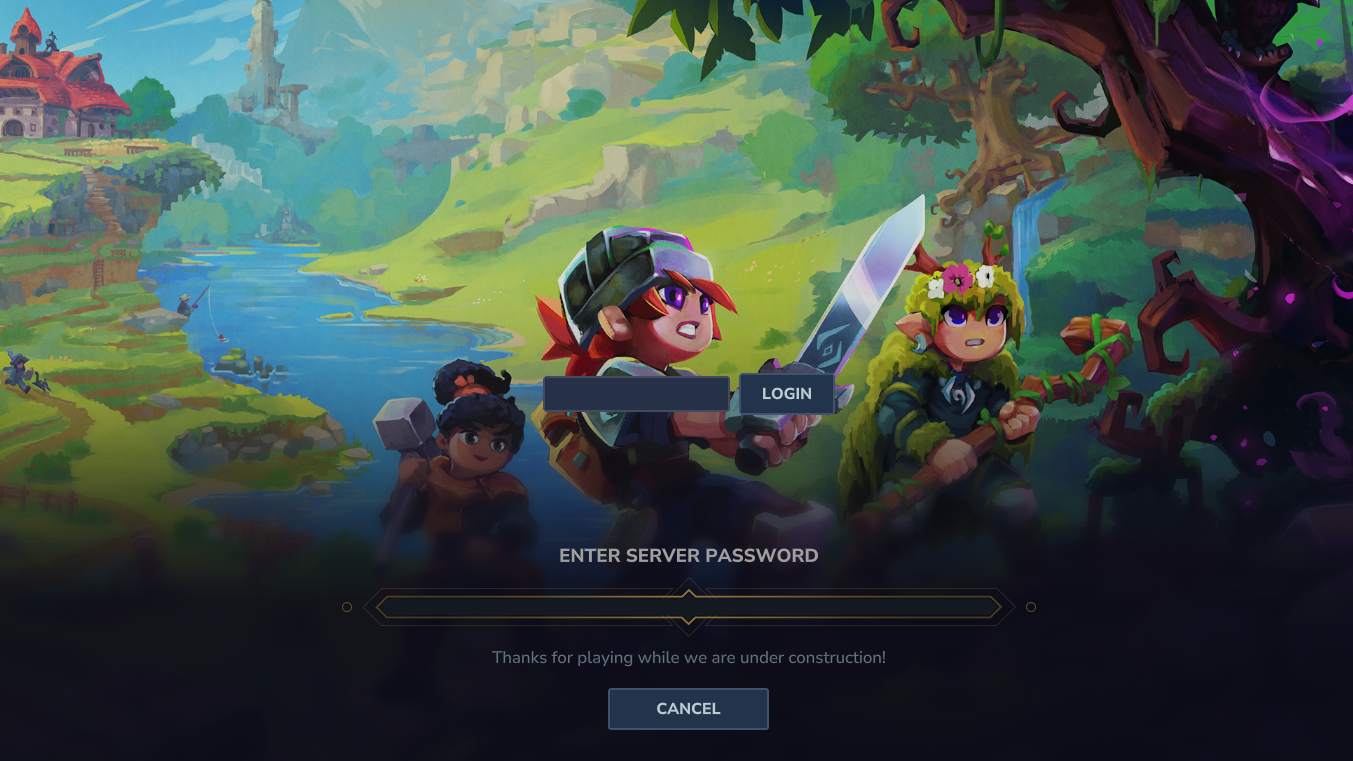
Whether you want to create a private space for your friends or an exclusive experience for a select community, adding a password is the first step.
This guide will explain how to set a password for your Hytale server by modifying the file config.json.
Step 1: Locate your server’s config.json file
To add a password to your entire server, you need to modify the main configuration file.
Your server’s file config.json is located in the root directory of your server.
Step 2: Add a password to your config.json file
To protect access to your server, open the file config.json with a text editor (such as Notepad++, VS Code, or Sublime Text).
You will need to add or modify the parameter Password; for example:
{
  "Version": 3,
  "ServerName": "Hytale Server",
  "MOTD": "",
  "Password": "MONPASSWORD",
  "MaxPlayers": 999,
  "MaxViewRadius": 16,
  "LocalCompressionEnabled": false,
  "Defaults": {
    "World": "default",
    "GameMode": "Adventure"
  },
  "ConnectionTimeouts": {
    "JoinTimeouts": {}
  },
  "RateLimit": {},
  "Modules": {},
  "LogLevels": {},
  "Mods": {},
  "DisplayTmpTagsInStrings": false,
  "PlayerStorage": {
    "Type": "Hytale"
  }
}
If you want to make your server public again, leave the value empty:"Password": ""
Step 3: Restart your server
After saving the changes to your file config.json, you must restart your Hytale server for the new settings to take effect.
Server configurations are read at startup.