

Nothing is more frustrating for players than losing hours of building or progression due to a crash, file corruption, or a handling error. Therefore, establishing a robust backup strategy is the primary responsibility of every administrator.
In the Hytale ecosystem, data persistence revolves around two main pillars: automation via server launch arguments and manual in-game commands to force data writing to the disk.
Configuring automatic backups
The most reliable method to secure your server is to use the native tools provided directly in the server startup process (the .jar file). These options allow you to create security copies without human intervention. When launching your server, you can add specific arguments to activate this system. Hytale’s file system, and specifically the universe/ folder which contains all world and player data, will then be copied periodically.
Here are the key arguments to know:
--backup: This is the main argument. If present, the automatic backup system is enabled.--backup-directory <Path>: By default, backups are placed in a folder relative to the server. This argument allows you to specify a different location (e.g., an external hard drive or a cloud-synchronized folder).--backup-frequency <Integer>: Defines the interval in minutes between two automatic backups. The default value is usually 30 minutes, but this can be adjusted according to your server’s activity.
Once configured, the server will generate archives of your data, allowing you to roll back in case of a major issue (mass griefing, chunk corruption, etc.).
The /backup command
This command allows you to manually trigger the backup process, which is ideal before applying an update or installing a new plugin. To function, your server must have been started with --backup-dir.

📋 Technical Sheet
- Description: Triggers the server backup system to archive the current state of the universe.
- Permission:
hytale.system.command.backup
🛠️ Syntax and Usage
| Action | Syntax | Description | Example |
| Launch a backup | /backup | Forces the immediate start of a global data backup procedure. | /backup |
The /world command
As an administrator connected to the game, you also have the ability to interact directly with the save state of the world in real-time. Although this does not create a compressed “archive” file like the automatic system above, this command is crucial for forcing data writing from Random Access Memory (RAM) to the hard disk before maintenance or a shutdown.
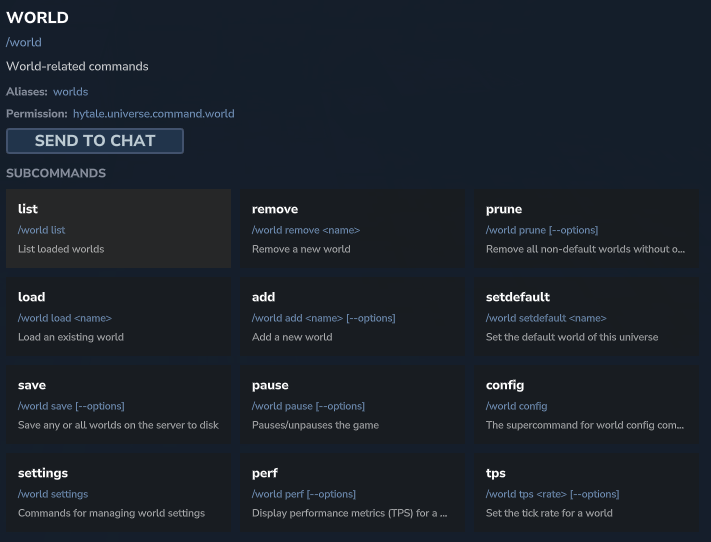
📋 Technical Sheet
- Description: Allows managing, loading, unloading, and saving server worlds.
- Permission:
hytale.universe.command.world
🛠️ Syntax and Usage
| Action | Syntax | Description | Example |
| Save a world | /world save [--options] | Forces the immediate save of all worlds or a specific world to the disk. | /world save |
| List worlds | /world list | Displays the list of all worlds currently loaded on the server. | /world list |
| Load a world | /world load <name> | Manually loads an existing world from the server files. | /world load creative_world |
| Set default world | /world setdefault <name> | Changes the main world where players spawn by default. | /world setdefault lobby |
Data restoration
Having backups is useless if you don’t know how to restore them. The procedure on Hytale is standardized and requires access to the server files. If you need to restore a backup following an incident:
- Stop the server immediately. Never attempt to replace files while the Java process is running, otherwise, irreversible corruption may occur.
- Access your server’s root folder.
- Locate the
universefolder. This is where the active data resides. - Rename this folder (e.g.,
universe_old) as a safety measure. - Retrieve your backup archive (created via the
--backupargument), extract it, and place the extracteduniversefolder at the root of the server. - Restart the server.
It is recommended to regularly test your restoration procedures on a local server to ensure your archives are intact and functional.