Hytale adopts a “server-first” approach to modding. This means that most game modifications are managed on the server side, even when you are playing solo (your solo game uses a local server). The goal is to ensure a stable, secure, and consistent experience for all players, thereby avoiding the fragmentation of game clients.
Key points to remember:
Summary
- Mods are tied to the server or game world. The game client receives modified content directly from the server it is connected to.
- No traditional “client mods”. Unlike other games, Hytale does not support direct modification of the client code by third-party files. The client remains stable, while the server temporarily adapts the experience.
- One community, one client. This approach aims to prevent players from having to juggle different versions of their game client to join various servers.
| Mod Type | Description | Potential Examples (Non-exhaustive) |
| Server Plugins (Java) | Programmatically extend server functionalities. They are very powerful for deep modifications of the game experience and core systems. | Creation of complex mini-games, economic systems, custom commands, unique game logic. |
| Data Assets (JSON) | Define gameplay behavior and base game content. They are at the heart of world customization. | Adding new blocks, items, NPCs, modifying world generation, custom loot tables, dynamic events. |
| Art Assets | Provide the visual and audio representation of game elements. They are essential for immersion and aesthetic variety. | New sounds, 3D models for creatures or items, high-resolution textures, themed resource packs. |
| Save Files | Allow sharing of entire worlds or specific builds, used in creative tools and world generation. | Sharing adventure maps, prefabs (trees, houses, monuments), community-built cities. |
| World Gen Mods | Influence how biomes, structures, and environments are created, profoundly transforming exploration. | Fantasy biomes, elaborate dungeons, urban structures, hidden civilizations, post-apocalyptic environments. |
| Server-Oriented Mods | Allow creation of specific rules, mini-games, economies, or structured multiplayer experiences. Also usable in solo play via a local server. | Quest systems, item shops, unique character classes, automated community events. |
How to install a CurseForge mod on your Hytale client
Installing mods on your Hytale client is simplified, notably thanks to the planned integration with platforms like CurseForge. Keep in mind that these “client mods” are actually resource and data packages that the server uses to enrich the game experience.
Method 1: Via the CurseForge Launcher (Recommended for easy management)
The CurseForge launcher is the simplest tool for managing your Hytale mods in solo play. It automates game detection and file installation.
| Step | Action | Details |
| 1. | Download and install the CurseForge launcher. | You can find it on the official CurseForge website. |
| 2. | Launch and detect Hytale. | Launch CurseForge. Hytale should be detected automatically if installed in the default location. Otherwise, add it manually. |
| 3. | Browse and choose your mods. | Once Hytale is in your library, browse the available mods via the dedicated tab. |
| 4. | Install the mod. | Click the “Install” button for the desired mod. The launcher automatically handles downloading and placing the files. |
| 5. | Launch Hytale. | The game should launch with the mod enabled. Check the “Mods” menu in-game if available. |
Method 2: Manual Installation (For total control)
If you prefer to install your mods manually or if you are obtaining files directly from creators, this method gives you direct control over your game folders.
- Locate the Hytale mods folder:
- Launch Hytale at least once to the main menu, then close it. This creates the necessary folders.
- Navigate to the following location, depending on your operating system:
| Operating System | Mods Folder Path |
| Windows | %appdata%\Hytale\user_data\mods (paste this into the file explorer address bar) |
| macOS | ~/Library/Application Support/Hytale/user_data/mods |
| Linux / Steam Deck | ~/.var/app/com.hypixel.hytale/data/Hytale/mods |
- Manual Installation Procedure:
- Download the mod file (often in
.zipor.jarformat). - If the mod is compressed (
.zip), unzip it. You will usually get a folder containing the mod files. - Place the mod folder (or
.jarfile) directly into themodsfolder you located, without creating unnecessary sub-folders. - Relaunch Hytale. The mod should be loaded automatically when starting your solo game or selecting the world.
- Download the mod file (often in
How to install a mod on your Hytale server
Installing mods on a Hytale server is the primary way to add custom content, as modding is “server-first”. This applies to both dedicated servers hosted by providers and a local server for your solo game.
| Step | Action | Details |
| 1. | Connect to your server control panel (if hosted) or access your local server files. | For a hosted server (e.g., Shockbyte), use your dashboard. For a local server, access the Hytale server installation folder directly. |
| 2. | Stop your server. | It is crucial to stop the server before adding or modifying files to avoid data corruption. |
| 3. | Locate the server’s mods folder. | This folder is usually found at the root of your Hytale server installation. |
| 4. | Download the mod file (usually a .jar file for server plugins). | Get the mod from a reliable source like CurseForge. Ensure it is compatible with your Hytale server version. |
| 5. | Transfer the mod file (.jar) into your server’s mods folder. | Use the file manager in your control panel or an FTP client (like FileZilla) if necessary. For a local server, simply copy-paste the file. |
| 6. | Start your server. | The server will detect and automatically load the new mod upon startup. You should see logs indicating the mod has been loaded. |
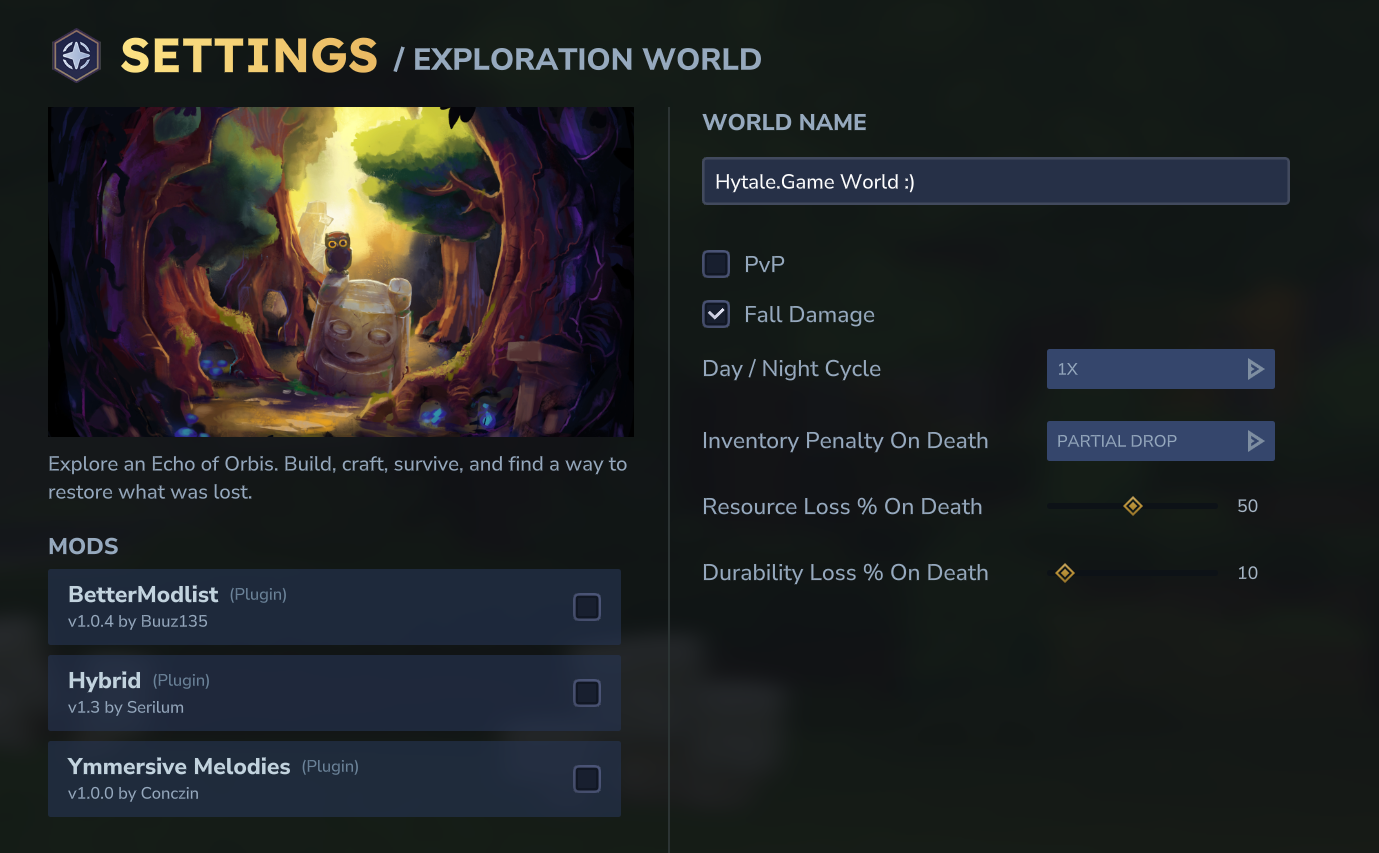
| 7. | Activate the mod via the in-game menu (if applicable). | Some mods may require activation or additional configuration via the game’s “Mods” menu after the server loads. For a solo game, after placing the mod in your client’s mods folder, open the Mods menu and activate it. |
Tips and Important Considerations
- Compatibility: Always ensure the mod version matches your Hytale game version to avoid conflicts or crashes.
- Trusted Sources: Always download your mods from recognized platforms like CurseForge to minimize security risks.
- Dependencies: Some mods may require other mods to function. Read descriptions carefully.
- Backups: Especially during the early access phase, make frequent backups of your worlds and creations. Hytale does not guarantee data integrity during this phase, and mods can cause issues.
- Connection Issues: If you have trouble joining a modded server, check your system language settings, firewall, and time synchronization. These issues can prevent a successful connection.
Modding is at the heart of the Hytale experience, and although the game is still evolving, the flexibility offered promises an unparalleled wealth of content and experiences. Have fun exploring community creations and forging your own version of Orbis!