

Managing a Hytale server requires full access to configuration commands. Whether it’s for moderating players, building without limits, or configuring plugins, you need to obtain administrator status (often called OP ).
This guide details the two main methods for acquiring these rights on your own server.
Method 1: The permanent method (recommended)
This method is the most reliable for a long-term configuration. It involves manually editing the server’s configuration files.
Step 1: Obtain your UUID
The UUID (Universally Unique Identifier) is the unique identifier of your Hytale account. It never changes, unlike your username.
- Connect to your server (if it is running).
- Open the chat and type the following command:
/uuid - Note the sequence of characters that is displayed (Example:
3bf5f21f-4a4d-4ff8-9294-9e3f31ecb70d).
Note: If you cannot connect, you will need to find your UUID via the server connection logs or a third-party tool.
Step 2: Stop the server
Important: Before modifying any file, ensure that your server is completely shut down . Modifying the file while the server is running will undo your changes upon the next restart.
Step 3: Edit the filepermissions.json
- Access the root of your server folder (via FTP or your file manager).
- Open the file named
permissions.json. - You must structure the file as follows, replacing
VOTRE-UUID-ICIwith the code retrieved in step 1.
Here is the code to copy and paste:
{
  "users": {
    "YOUR_UUID_ICI": {
      "groups": [
        "OP"
      ]
    }
  }
  "groups": {
    "Default": [],
    "OP": [ "*" ]
  }
}
Understanding the code:
"users": Associates your unique identifier with the “OP” group."*"This symbol is a “wildcard”. It means that the OP group has all existing permissions on the game.
Step 4: Restart
Save the file, close the editor, and restart your server. You are now a permanent administrator!
Method 2: via command line
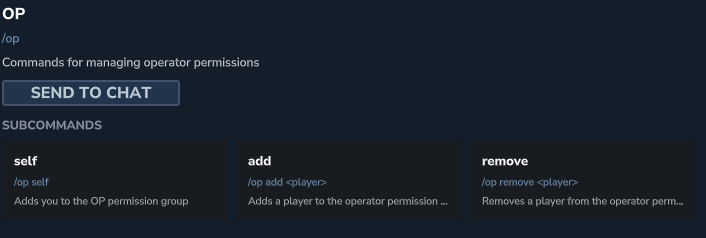
To grant administrator permissions to a player, you can use the following command, if you yourself have the permissions:
/op add <playername>Withdrawal of permissions
To remove administrator permission:
/op remove <playername>Method 3: The (temporary) launching argument
This method is ideal for troubleshooting, initial setup, or if you have lost your access.
Step 1: Launch with the special argument
Instead of starting the server normally, you need to add a “flag” (argument) to your startup command.
- Under Linux / Mac:
./hytale-server --allow-op - On Windows (via PowerShell or CMD):
hytale-server.exe --allow-op
Step 2: Assigning rights
Once the server is started with this argument, a special command becomes directly accessible in the server console:
- Open your server console.
- Type the following command:
/op self
⚠️ Warning: This method is temporary . If you restart the server without the argument
--allow-op, you will lose your rights if you have not configured the filepermissions.jsonin the meantime.