
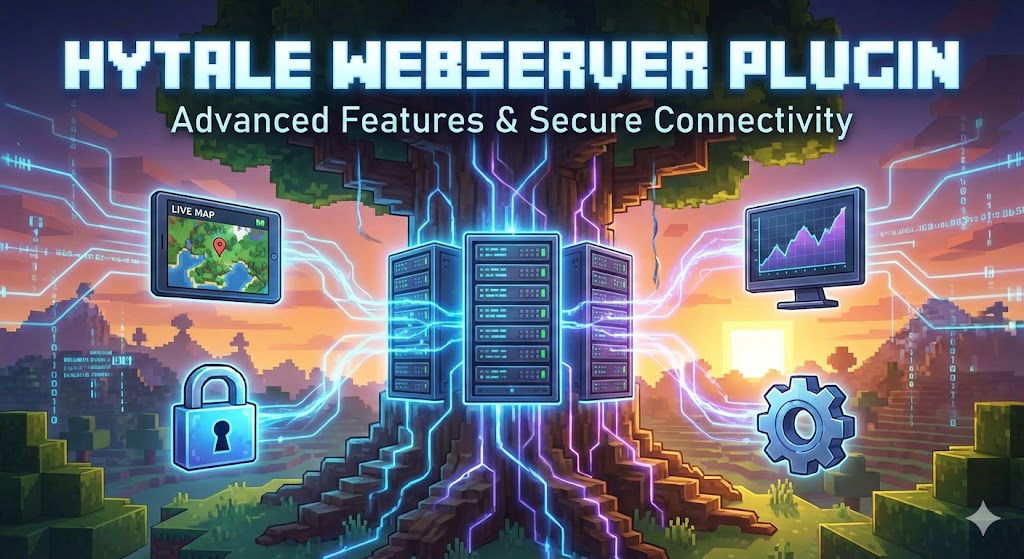
The ecosystem of a modern Hytale server is no longer limited to the game itself. To offer advanced features like live maps, shops, statistics pages, or remote administration tools, your server must be able to communicate with the web. This is where the Hytale WebServer Plugin comes in.
Instead of letting every mod open its own port and manage connections in a chaotic manner, this plugin acts as a centralized foundation. It standardizes how your Hytale server exposes data via HTTP, greatly simplifying life for system administrators and optimizing performance.
Installation and First Startup
Installing this plugin is designed to be seamless. Simply place the .jar file into your Hytale server’s mods/ folder.
You can find the JAR here: https://github.com/nitrado/hytale-plugin-webserver/releases/
Upon the first launch, the web server will initialize automatically. By default, it listens on your game server port + 3. For example, if your Hytale server runs on port 5520, the web server will be accessible on port 5523.
If you need to modify this behavior—specifically if you are hosting multiple servers on the same machine—you can create or edit the configuration file located here: mods/Nitrado_WebServer/config.json
Here is how to change the address and listening port:
{
  "BindHost": "0.0.0.0",
  "BindPort": 8080
}
Advanced TLS Security Management
This is the core of this plugin’s configuration. Today, exposing a web service without encryption is a risky practice. The Hytale WebServer plugin natively includes support for Transport Layer Security (TLS), allowing you to switch from HTTP to secure HTTPS.
By default, the plugin is secure. If you don’t touch anything, it will automatically generate a self-signed certificate. This is functional for testing, but your players’ web browsers will display a security warning because the certificate authority is not recognized.
For a professional setup, you have three main options to define in the Tls section of your config.json.
Using Your Own Certificates (PEM)
If you have already purchased a domain name and generated SSL certificates from a recognized authority, you can provide them directly to the plugin. This is the recommended method for established servers that already have a web infrastructure.
You will need the path to your public certificate and your private key:
{
  "Tls": {
    "CertificateProvider": "pem",
    "Pem": {
      "CertificatePath": "/path/to/your/certificate.pem",
      "PrivateKeyPath": "/path/to/your/private-key.pem"
    }
  }
}
Automation with Let’s Encrypt
The plugin integrates support for the ACME protocol, allowing you to obtain free and automatic certificates via Let’s Encrypt. For this to work, your server must be publicly accessible on port 80/443 (or the configured port), and your domain must point to the server’s IP.
Warning: During your initial tests, leave the Production value set to false. Let’s Encrypt applies strict rate limits on the production environment. Switch to true only when your configuration is validated.
{
  "Tls": {
    "CertificateProvider": "letsencrypt",
    "LetsEncrypt": {
      "Domain": "my-hytale-server.com",
      "Production": false
    }
  }
}
Disabling TLS (Insecure Mode)
In some very specific cases—for example, if your Hytale server is behind a Reverse Proxy like Nginx or Apache that already handles SSL—you might want to disable encryption at the plugin level to avoid double handling.
However, only do this if you know exactly what you are doing and the server is not directly exposed to the internet.
{
  "Tls": {
    "Insecure": true
  }
}
Authentication and Service Accounts
The plugin doesn’t just serve pages; it also secures access to data. It integrates directly with Hytale’s permission system. This means you can restrict access to certain web pages based on the player’s in-game rank.
The Anonymous User
For public pages (like a list of connected players visible to everyone), the plugin uses the concept of an “Anonymous” user. It has a specific UUID (consisting of zeros) and belongs to the ANONYMOUS group.
If you wish to make certain data accessible without a password, you must grant the necessary permissions to the ANONYMOUS group in your main Hytale server permissions.json file.
Service Accounts
For external tools, such as a Discord bot querying the server to display status, it is not recommended to use a player account. The plugin allows for the creation of “Service Accounts”.
These accounts are defined via JSON files in the mods/Nitrado_WebServer/provisioning/ folder. They allow scripts to authenticate via a standard “Basic Auth” method to perform secure requests to your server.
Why This Plugin Is Essential
Beyond technical configuration, using this unified WebServer is a matter of performance and stability. If you install a statistics plugin (like Query) or a performance monitoring plugin (like Prometheus), they will depend on this base web server.
This avoids opening 10 different ports on your firewall for 10 different mods. You centralize HTTP/HTTPS traffic, you centralize SSL certificate management, and you offer a standardized and secure interface for your Hytale project’s entire web ecosystem.